The Android Activity Lifecycle: Mastering activity lifecycle of android
The Android Activity lifecycle is the sequence of states an Activity moves through, from the moment it’s first created until the system finally destroys it. Getting a handle on this lifecycle is non-negotiable for any Android developer. It's what governs how your app behaves, how it manages precious resources, and how it responds to everything the user—and the operating system—throws at it.
Why the Android Activity Lifecycle Is Your App's Foundation
Think of the Android Activity lifecycle as the fundamental operating manual for your app's screens. Getting it right is the difference between an app that feels stable and professional, and one that constantly crashes, loses user data, and just feels broken. This isn't some obscure technical detail; it’s the core principle that dictates your app's real-world performance and reliability.
Whether you're building your app in Kotlin vs Java, mastering the Activity lifecycle is absolutely essential. It gives you a solid framework for managing what happens when a user navigates away, a phone call interrupts them, or they simply rotate their device.
From Blueprint to a Resilient App
A strong grasp of the lifecycle helps you sidestep some of the most common—and costly—bugs, like memory leaks and crashes from improper state handling. When you deeply understand states like created, resumed, and destroyed, you can build a user experience that just works. This is huge, especially when you consider that 21% of users will ditch an app after just one bad experience, which is often caused by sluggish performance or broken features.
Building with the lifecycle in mind shifts your development process from reactive firefighting to thoughtful, strategic architecture.
An app that correctly manages its lifecycle feels seamless. It remembers what the user was typing when they get interrupted, and it doesn't secretly drain the battery in the background. That's the kind of reliability that builds user trust and keeps them coming back.
This foundation is what allows an application to scale successfully. It ensures your app remains stable and performant, even when dealing with unpredictable network conditions. For a deeper look into that specific challenge, check out our guide on optimizing app performance for various network conditions. Ultimately, a well-architected lifecycle is your best defense against mounting technical debt and losing frustrated users.
Navigating The Core Lifecycle Callbacks
To really get a handle on the Android activity lifecycle, you have to understand its core callbacks. Think of these methods as hooks the Android OS gives you to run your code at just the right moment. They’re like scheduled appointments in your Activity's life, from the moment it's created until it's gone for good.
Each callback lines up with a specific change in the Activity's state. For example, when your app first launches, the system calls a specific sequence: onCreate(), onStart(), and finally onResume(). Getting this order down is the first step toward building an app that behaves exactly how you expect.
This flow is a lot like building a house. You start with a blueprint, lay a solid foundation, and then build a stable structure on top. The activity lifecycle is your app's blueprint.
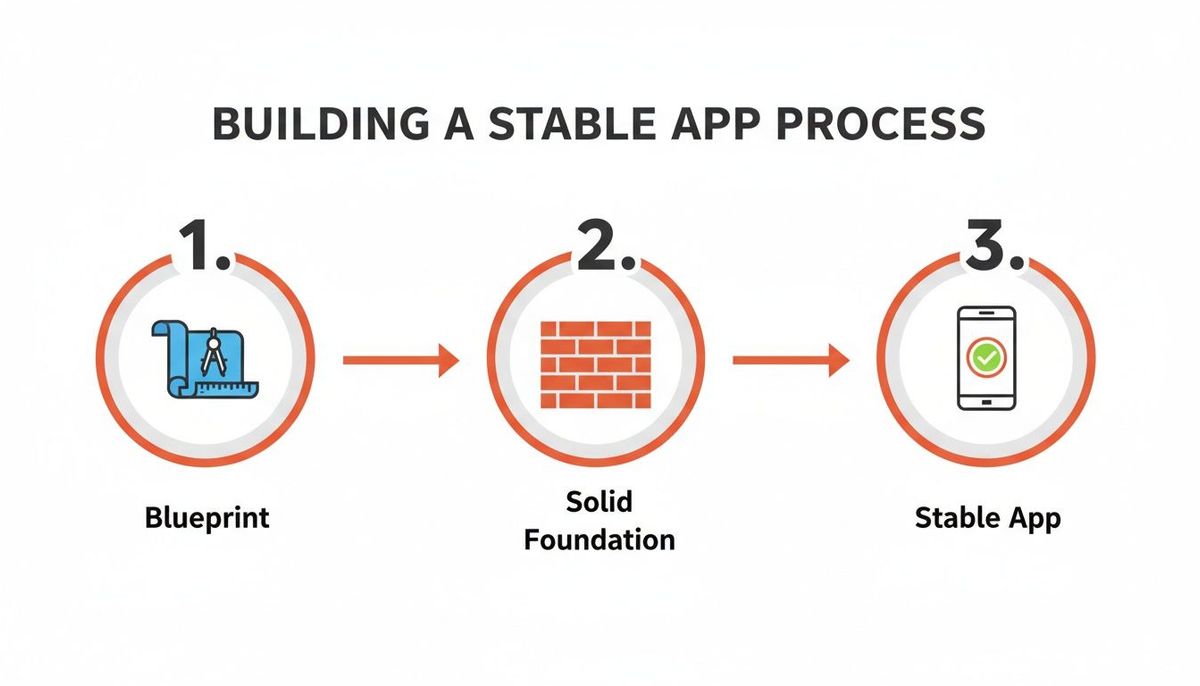
As the image shows, a reliable app doesn't just happen by accident. It’s built on a solid foundation—and that foundation is a deep understanding of the activity lifecycle.
To help you keep track, here's a quick rundown of the main lifecycle methods you'll be working with. We'll explore each of these in more detail, but this table is a great reference to come back to.
| Callback Method | When It's Called | Typical Actions |
|---|---|---|
| `onCreate()` | Once, when the Activity is first created. | Set the layout, initialize ViewModels, bind data, and perform one-time setup. |
| `onStart()` | When the Activity becomes visible to the user. | Start animations, register broadcast receivers that update the UI, or initialize resources needed for the UI. |
| `onResume()` | When the Activity is in the foreground and the user can interact with it. | Resume animations or video playback, start acquiring exclusive-access resources like the camera. |
| `onPause()` | When the Activity is about to lose focus (e.g., a dialog appears or the user navigates away). | Pause ongoing operations (like video), save unsaved data, release exclusive resources. |
| `onStop()` | When the Activity is no longer visible to the user. | Stop UI-related work, release resources that are not needed when the app is in the background. |
| `onDestroy()` | Just before the Activity is destroyed, either by the user finishing it or the system. | The final cleanup. Release all resources acquired in `onCreate()` that haven't been released yet. |
| `onRestart()` | After an Activity has been stopped, just before it is started again. | Restore state or perform any setup needed when an Activity comes back into view from a stopped state. |
These callbacks are the fundamental building blocks for creating a robust and user-friendly Android application. Now, let's break them down.
The Creation And Destruction Pair
The two most important callbacks you'll ever use are onCreate() and onDestroy(). They bookend your Activity's entire existence, marking its absolute beginning and its final end.
onCreate() is called only once, right when the system first creates your Activity. This is your go-to spot for all one-time setup tasks that need to happen before anything else.
- Set the UI layout: This is where you always call
setContentView(). - Initialize core components: Set up your ViewModels, create adapters for your lists, and wire up your click listeners.
- Perform initial data binding: Connect your UI elements to their data sources for the first time.
Actionable Insight: Put all your heavy, one-time setup work in onCreate(). This is the place for view binding, initializing objects that will live for the entire duration of the Activity, and any other setup that shouldn't be repeated.
// Practical Example: Setting up a user profile screen
override fun onCreate(savedInstanceState: Bundle?) {
    super.onCreate(savedInstanceState)
    // Set the user interface layout for this Activity
    setContentView(R.layout.profile_activity)

    // Initialize the ViewModel that holds user data
    val viewModel = ViewModelProvider(this).get(ProfileViewModel::class.java)

    // Setup the RecyclerView adapter once and for all
    val ordersAdapter = OrdersAdapter()
    recyclerView.adapter = ordersAdapter

    // Observe data from the ViewModel to update the UI
    viewModel.userOrders.observe(this) { orders ->
        ordersAdapter.submitList(orders)
    }
}
On the flip side, onDestroy() is your last chance to clean up shop. It gets called just before the Activity is destroyed, which can happen because the user is done with it or because the system needs to reclaim memory. Use it to release any resources you grabbed in onCreate() that haven't been let go of yet.
The Visible Lifecycle States
Next up, we have onStart() and onStop(), which are all about visibility. The system calls onStart() right as your Activity becomes visible to the user, and it calls onStop() when it's completely hidden.
Key Takeaway: TheonStart()/onStop()pairing is perfect for managing resources you only need while your UI is actually on the screen. For example, if you have a broadcast receiver that updates your UI, you'd register it inonStart()and unregister it inonStop()to avoid doing work when no one's watching.
If your app uses a map, onStart() is a great place to get it ready. If you want to dive deeper into this specific use case, we have a guide that explains how to use MapView and manage its lifecycle properly.
The Foreground Lifecycle States
Finally, there’s onResume() and onPause(). These two handle user interaction. onResume() is called when the Activity is in the foreground and is the very thing the user is interacting with. onPause() is called when the Activity loses that focus, like when a system dialog pops up or the user hits the home button.
Actionable Insight: This is your cue to pause anything that requires the user's attention, like a video playing, and to save any critical data that the user was in the middle of entering. For example, in a messaging app, onPause() is the perfect place to save the current draft of a message.
// Practical Example: Handling a video player
override fun onResume() {
    super.onResume()
    // The user can see and interact with the screen, so start playback.
    videoPlayer.start()
}

override fun onPause() {
    super.onPause()
    // The screen is about to be obscured; pause the video to save resources
    // and avoid playing audio in the background.
    videoPlayer.pause()
}
Surviving Configuration Changes and Process Death
If you've been around Android development for any length of time, you've run into them. The two events that can wreck an otherwise perfect app experience: configuration changes and process death. They're the gremlins in the system, capable of wiping out your app's state in a flash and leaving users with lost form data or a completely reset screen.
Getting a handle on these isn't just a technical box to check. It's about building a professional, resilient application that people don't abandon in frustration.

This stuff directly hits your metrics. The data on user retention is brutal: 25% of users ditch an app on the very first day, and after 30 days, that retention rate plummets to just 2.6%. But a smooth, bug-free experience makes a real difference. For instance, users who get through onboarding in under a minute are 50% more likely to stick around. An app that loses state is the polar opposite of smooth. You can find more stats on how technical execution impacts mobile app success over at raascloud.io.
The ViewModel Solution for Configuration Changes
The most common culprit is simply rotating the phone. When a user turns their device from portrait to landscape, Android's default behavior is to destroy your Activity and then immediately recreate it. This is so it can load the right resources for the new orientation. The problem? All of your UI state—the text someone just typed into an EditText, the scroll position of a list—is gone.
This is exactly where the ViewModel from Android Architecture Components steps in. It's a class designed specifically to store and manage UI-related data in a way that respects the Activity lifecycle.
Key Insight: AViewModelis not destroyed during a configuration change. It stays in memory while theActivityis torn down and rebuilt, allowing the newActivityinstance to reconnect and pull its data right back.
Think of it like this: the Activity is just a temporary screen for displaying information. The ViewModel is the brain behind it. You can swap out the screen, but the brain remembers everything.
Actionable Insight: Store data fetched from the network in a ViewModel instead of the Activity. This prevents costly re-fetching every time the user rotates their phone.
// 1. Create a ViewModel to hold the data
class UserProfileViewModel : ViewModel() {
    // Use LiveData to hold profile data that can be observed by the UI
    private val _userProfile = MutableLiveData<UserProfile>()
    val userProfile: LiveData<UserProfile> = _user_profile

    fun fetchUser(userId: String) {
        // Imagine this is a network call
        _userProfile.value = repository.fetchUserProfile(userId)
    }
}

// 2. In your Activity's onCreate()
override fun onCreate(savedInstanceState: Bundle?) {
    super.onCreate(savedInstanceState)
    val viewModel = ViewModelProvider(this).get(UserProfileViewModel::class.java)

    // If savedInstanceState is null, it's the first creation.
    // If not, the ViewModel already has the data from before the rotation.
    if (savedInstanceState == null) {
        viewModel.fetchUser("some-user-id")
    }

    // Observe the data. The UI will update automatically on rotation.
    viewModel.userProfile.observe(this) { profile ->
        // Update TextViews, ImageViews, etc.
    }
}
This pattern neatly decouples your UI's data from the volatile Activity, solving the configuration change headache for good.
Surviving the Unthinkable with SavedStateHandle
But what about when things get more serious? Let's say a user backgrounds your app to answer a phone call. If the Android OS starts running low on memory, it might decide to kill your app's entire process to reclaim resources. This is process death.
When this happens, your ViewModel is destroyed along with everything else in your app's memory. The next time the user navigates back to your app, the system fires up a brand new process and a new Activity. Your ViewModel is also new, and completely empty. Your app effectively has amnesia.
The fix is to pair your ViewModel with a SavedStateHandle.
Actionable Insight: Use SavedStateHandle for small, critical pieces of user input or navigation state, like a search query or a user ID, that must survive process death.
// Practical Example: A ViewModel that survives process death
class SearchViewModel(private val savedStateHandle: SavedStateHandle) : ViewModel() {
    // Get a LiveData that is backed by the SavedStateHandle
    val query: MutableLiveData<String> = savedStateHandle.getLiveData("searchQuery")

    fun onQueryChanged(newQuery: String) {
        // The value is automatically saved to the SavedStateHandle
        query.value = newQuery
    }
}

// In your Activity, observe the query LiveData.
// If the process is killed and restarted, the ViewModel will be recreated
// with the last saved query from the SavedStateHandle.
viewModel.query.observe(this) { currentQuery ->
    searchEditText.setText(currentQuery)
}
This is how you build a truly seamless experience, no matter what the operating system throws at you.
Applying Modern Lifecycle-Aware Patterns

Sure, you can manage everything by scattering onStart(), onStop(), and onDestroy() calls directly inside your Activity. It works. But it’s a recipe for disaster. This old-school approach turns your Activity into a bloated, messy dumping ground for all sorts of unrelated logic. It tightly couples your resource management to your UI, making the code incredibly difficult to test and maintain.
Thankfully, modern Android development gives us a much cleaner way forward: lifecycle-aware components.
These are self-contained classes that automatically react to the state changes of an Activity or Fragment. Instead of the Activity bossing a component around, telling it when to start or stop, the component simply observes the Activity's lifecycle and manages itself. This flips the control, leading to code that is far more modular, reusable, and a breeze to test.
Using LifecycleObserver for Clean Code
The magic behind this pattern is the LifecycleObserver interface. By implementing it, you can create a class that hooks into any lifecycle owner (like an Activity). The Android framework then takes over, automatically calling annotated methods in your observer as the lifecycle state shifts.
Think about a common task: tracking a device's location. The old way meant starting a location listener in onStart() and stopping it in onStop(), right inside your Activity.
Actionable Insight: The modern, lifecycle-aware approach is a world of difference. You wrap all that location logic into its own neat little class.
// A self-managing, reusable location listener
class MyLocationListener(
    private val lifecycle: Lifecycle,
    private val onLocationChanged: (Location) -> Unit
) : DefaultLifecycleObserver {

    private lateinit var locationProvider: FusedLocationProviderClient

    // Called automatically when the Activity's onResume() is triggered
    override fun onResume(owner: LifecycleOwner) {
        // Safely start listening for location updates
        // Note: Add permission checks in a real app!
        locationProvider.requestLocationUpdates(...)
    }

    // Called automatically when the Activity's onPause() is triggered
    override fun onPause(owner: LifecycleOwner) {
        // Safely stop listening to save battery
        locationProvider.removeLocationUpdates(...)
    }
}

// Inside your Activity's onCreate()
// The listener now manages its own lifecycle!
val locationListener = MyLocationListener(lifecycle) { location ->
    // Update a map or a TextView with the new location
}
lifecycle.addObserver(locationListener)
This is a massive improvement. The Activity is now completely clueless about the implementation details of the location provider—and that's a good thing! It just creates the listener and adds it as an observer. All the start/stop logic is now cleanly contained within MyLocationListener, making it easy to reuse on any screen.
Getting this right is a cornerstone of solid app architecture. If you're looking to go deeper, our guide on how to choose the right tech stack for your project is a great place to start.
Declarative UI and Lifecycles in Jetpack Compose
The principles of the activity lifecycle of android don't just disappear in the modern world of Jetpack Compose; they evolve. With Compose, you build your UI declaratively, and side effects—like firing off a network request or observing a data flow—are handled inside special composable functions that are themselves lifecycle-aware.
Practical Insight: Use LaunchedEffect to run suspend functions safely within the lifecycle of a composable. It will automatically cancel the coroutine when the composable leaves the screen, preventing memory leaks and stopping unnecessary work in its tracks.For instance, if you need to fetch data from a ViewModel the moment a screen appears, LaunchedEffect is your best friend.
@Composable
fun UserProfileScreen(viewModel: UserProfileViewModel, userId: String) {
    // This coroutine kicks off when UserProfileScreen enters the composition
    // and is automatically canceled when it leaves. It will re-run if userId changes.
    LaunchedEffect(key1 = userId) {
        viewModel.fetchUserData(userId)
    }

    val userState by viewModel.user.collectAsState()

    // UI code to display the userState, which might be loading, success, or error
    when (userState) {
        is UiState.Loading -> CircularProgressIndicator()
        is UiState.Success -> UserDetails(user = (userState as UiState.Success).data)
        is UiState.Error -> ErrorMessage(message = "Failed to load user.")
    }
}
This declarative pattern gets you to the same place as observers but fits perfectly with Compose's philosophy. You simply state what should happen when the UI is on screen, and the framework handles the how and when based on the composable's own lifecycle. It’s elegant, efficient, and far less error-prone.
Avoiding Common Lifecycle Pitfalls
Knowing the Android Activity lifecycle in theory is one thing. Actually dodging the common traps in practice is what separates a stable, polished app from a buggy one. Even tiny mistakes here can lead to awful performance, frustrating crashes, and memory leaks that silently kill the user experience.
Let's break down the most frequent mistakes I see developers make and how to fix them.
The Google Play Store is a battlefield. With nearly 998 new apps dropping every single day, users have more choices than they know what to do with. The average person might have over 80 apps installed, but they only really use a handful. This means technical excellence isn't just a "nice-to-have"—if your app is buggy or slow, it's getting uninstalled. Tekrevol's research on mobile app trends confirms this.
Pitfall 1: Blocking the Main Thread
This is probably the single most damaging mistake you can make. Performing any long-running task—like a network call or a heavy database query—directly inside a lifecycle callback like onCreate() is a recipe for disaster. It blocks the UI thread, freezes your app, and triggers that dreaded "Application Not Responding" (ANR) dialog.
Users don't wait. They just kill your app.
What Not To Do:
// INCORRECT: This blocks the UI thread and will cause an ANR!
override fun onStart() {
    super.onStart()
    val user = database.userDao().getBlocking(userId) // Bad practice
    nameTextView.text = user.name
}
What To Do Instead:
Get that work off the main thread. Coroutines are the modern way to handle this. You launch the heavy work on a background thread and then pop back to the main thread only when you need to update the UI. This keeps your app feeling snappy and responsive.
// CORRECT: Use coroutines to move work off the main thread.
override fun onStart() {
    super.onStart()
    // The lifecycleScope is automatically cancelled when the Activity is destroyed.
    lifecycleScope.launch {
        val user = withContext(Dispatchers.IO) {
            database.userDao().get(userId) // Runs in the background
        }
        // This part runs back on the main thread automatically.
        nameTextView.text = user.name
    }
}
Pitfall 2: Creating Memory Leaks
Memory leaks are silent killers. They're sneaky and can be tough to track down, but they will degrade your app's performance over time until it becomes unusable.
A classic cause is holding a static reference to something that knows about the Activity or View (anything with a Context). Because that static reference lives forever (as long as your app process is alive), the garbage collector can never clean up the Activity's memory, even long after the user has navigated away.
Another one I see all the time is forgetting to unregister listeners. If you register a BroadcastReceiver or a sensor listener in onStart(), you absolutely must unregister it in onStop(). If you don't, that listener will hold a reference to your Activity, preventing it from ever being garbage collected.
Critical Takeaway: Always unregister listeners in the matching "opposite" lifecycle method. Register inonStart(), unregister inonStop(). Register inonResume(), unregister inonPause(). This simple rule will save you so many headaches.
Getting the Activity Lifecycle right is fundamental to building a maintainable app. It’s a huge part of reducing technical debt. Writing clean, leak-free code from the start prevents a mountain of problems down the road and keeps your app running smoothly. When you nail these fundamentals, you build a robust foundation that actually delights users instead of driving them away.
Your Toughest Android Activity Lifecycle Questions, Answered
Even after you’ve got the basics down, the Android activity lifecycle can throw some real curveballs in practice. I’ve seen these same questions trip up developers for years. Let's clear up the confusion with some straight, practical answers for the situations you'll actually run into.
What Is The Difference Between onPause And onStop?
The real difference comes down to one thing: visibility.
Think of onPause() as your Activity getting partially covered up. It’s lost focus, but the user can still see a piece of it—maybe a transparent dialog box popped up, or the user entered multi-window mode. This is your last shot to do something quick, like saving a draft in a notes app before the Activity is fully hidden. It has to be fast because the next Activity is waiting to be shown.
onStop(), on the other hand, fires when your Activity is completely gone from the screen. It's totally obscured or in the background. Since the UI is no longer visible, this is the perfect time to release the heavy stuff. Shut down network connections, unregister listeners, or stop animations. Waiting until onStop() for these more intensive cleanup tasks keeps your app feeling snappy, even when it's just partially covered.
Does A ViewModel Survive When The App Is Killed By The System?
No. This is a huge point of confusion, so let's be crystal clear: ViewModel objects are designed to survive configuration changes only. When the user rotates their screen, the Activity is torn down and rebuilt, but the ViewModel sticks around, keeping its data in memory. It's a lifesaver for that specific scenario.
But if the Android system decides your app process has been in the background too long and needs to be killed to free up memory (process death), everything goes with it—including your ViewModel.
To truly save state through process death, you need to pair your ViewModel with SavedStateHandle. This is the mechanism Android provides to persist small amounts of data through the entire process being killed and restarted. When the user returns, your ViewModel can pull from the SavedStateHandle and restore itself, creating a seamless experience.
When Should I Use onStart vs onResume?
I like to think of it this way: onStart() is for setting the stage, and onResume() is for starting the performance.
Use onStart() to get UI-related resources ready the moment your Activity becomes visible. This is a good spot to register a BroadcastReceiver that updates the UI or prepare other visual components. It’s about getting things in place.
Use onResume() for tasks that should only happen when the Activity is in the foreground and fully interactive. Think starting animations, playing a video, or grabbing an exclusive resource like the camera. onResume() gets called every time your app moves into the foreground, while onStart() might be skipped if the app was just paused (partially visible) and not fully stopped.
A Real-World Example: You'd fire an analytics event for a "screen view" inonStart(), because it only needs to happen once when the screen first appears. A video player, however, should resume playback inonResume()and pause it inonPause(). This ensures it only plays when the user is actively watching.
How Does The Activity Lifecycle Affect Memory Leaks?
The lifecycle is your number one defense against memory leaks. Leaks in Android often happen when something long-lived (like a background thread, a static singleton, or a listener) holds onto a reference to an Activity long after it's been destroyed. The garbage collector sees that reference and thinks the Activity is still needed, so it can't clear out the massive amount of memory used by that Activity and all its views.
Properly using the lifecycle callbacks is how you prevent this. By tying your setup and teardown logic to the lifecycle, you break those references at the right time.
- Registered a listener in
onStart()? Unregister it inonStop(). - Started a thread in
onCreate()? Make sure it's properly stopped and its reference to the Activity is cleared inonDestroy().
This discipline ensures you clean up after yourself and let the garbage collector do its job.
At Vermillion, we specialize in building scalable, reliable software by embedding senior technical judgment directly into your development process. If you need to build a product that can survive real-world conditions without accumulating hidden technical debt, we can help. Learn how we partner with founders to build with confidence.